I put up a new header today, very simple - minimalist all the way.
Let me know what you think! Poll on the left, or leave a comment.
Not sure how I feel about it yet, I do think it looks better than the standard header though. I could change color, add flash, transitions, more images, change gradient, etc etc. I sort of prefer the minimalist look though, just the text, no movement, no images...Tried to pick a color that would go with the blog...what do you think?
Sunday, November 7, 2010


Saturday, November 6, 2010
Attack Clients on Open Wifi - Firesheep (Part 2)
Looks like the 15 minutes of fame for Firesheep is getting extended...
Sites you can pwn using Firesheep:
 In truth, Wireshark did this ages ago via the little-known-method of copy/paste :) Turn the clock back to the beginnings of 802.11, war-driving, wep-cracking, and this type of attack was still valid. Why all the discussion now? Because instead of copy/paste, you get a nice little GUI and employ the uber-powerful double-click!
 What does all this mean? Whenever an attack gets easier, it tends to become more popular. You can bet top dollar that going forward, at Starbucks, Safeways, Hotels, or wherever there is free open wifi, there will be someone running Firesheep. Hint: look for the script kiddie, social outcast, or the dude laughing so hard he looks like he may shit himself.
 Few words of caution if you intend on "testing" this out in your neighborhood:
 To finish out this post I think I'll add a short list of additional "connections/networks/protocols" that are vulnerable to Firesheep (yeah so I interchanged words that shouldn't be interchanged, sue me)
Sites you can pwn using Firesheep:
- Flickr
- Yahoo! Mail
- Windows Live
- Hotmail
- Google.com (not GMail)
- Slashdot
- Amazon
- Newegg
- Home Depot
- United Airlines
- Office Max
- Wordpress (when not using their optional SSL)
- More coming soon!


- People are already doing this, so you're behind the times (see above link)
- Most owners of open-wifi at commercial establishments have ToS (terms of service), you are likely violating those terms of service. However, those ToS also go both ways, informing users that there can be no expectation of privacy, or liability for the store/wifi owner, should damage occur.
- In many countries/states/counties/cities, it is illegal to sniff networks for user information unless said users authorize the action. Check your local laws. IANAL

- POP3 Mail
- SMTP Mail
- IMAP Mail
- FTP
Attack Clients on Open Wifi - Firesheep
Keeping the theme of security rolling, I wanted to put a quick post about Firesheep.
This is a relatively new tool, but its based on a fairly old attack method (sidetracking/session-hijacking).
Why do we care about this? Because it's a legit attack over open WiFi that will allow a user to essentially hack your logins/passwords and gain access to your "private accounts" (i.e. Facebook, Email, etc.)
Slashdot and many other publications have already picked up on Firesheep, and the developer has already felt the full effects of what is known as the "security shitstorm." The security shitstorm normally ensues when an old attack (or a new attack) becomes "easy" in the wild. People moan and groan and bitch at the developer, mostly. How could you do this, they say. Why are you such an ass, other developers moan. You're just enabling the script kiddies, all the old dudes yell. Yeah, yeah, whatever. Software is software, get over it.
Onto the heart of the subject, Firesheep.
Firesheep was released on Monday, November 1st, and has already been downloaded something like 500,000 times. Firesheep is an addon to Firefox. The addon allows you to "sniff" the open wireless network you are on (at starbucks, safeway, the airport, whatever). Firesheep sniffs for, put simply, logon cookies. Other users on the same open Wifi as you, that login to say, Facebook...well you steal that "logon cookie" (I'm simplifying, run with me here...). You then use that logon cookie and gain access to whatever private site that user was logged into (i.e. Facebook). Pretty cool eh?
Think of it this way, when you login to Facebook, and then close that tab/window/whatever...but decide 20 minutes later to go back...you don't always have to retype your user/password...do you? No, you don't. That information and the session authentication is stored in a little piece of shit called a cookie. Well if someone can copy that cookie, they can fake Facebook into thinking they are you. Viola - they are now in your account.
 There are limitations, of course, and I think the developer does an excellent job of explaining them on his website. The problem essentially arises from only securing the login page and information. I won't get into the details, because they don't really matter to most of the public. You just need to know that your shit is vulnerable. Maybe if I get bored I'll put a list of major websites that are vulnerable, maybe not...By the way, screw you if you don't like the dude or the tool...as I said, software is software.
You may recall me mentioning how that wonderful open wifi at the airport was not-so-good after all in an earlier post about VyprVPN. Well, here's your proof. Seriously folks, be careful. I didn't mention the longer methods, that of course, are still valid...but now that Firesheep is out in the wild, it's gotten a lot easier. I'll be posting again with some screenshots of Firesheep in action around town. I'll also incorporate a how-to-beat Firesheep in the very near future. Hint: VPN
 This isn't just Facebook or Flickr we're talking about here, a lot of your logins are potentially vulnerable to this type of attack.
 |
| BBQ Sheep |
Why do we care about this? Because it's a legit attack over open WiFi that will allow a user to essentially hack your logins/passwords and gain access to your "private accounts" (i.e. Facebook, Email, etc.)
 |
| All your HTTP logins belongs to me |
Onto the heart of the subject, Firesheep.
Firesheep was released on Monday, November 1st, and has already been downloaded something like 500,000 times. Firesheep is an addon to Firefox. The addon allows you to "sniff" the open wireless network you are on (at starbucks, safeway, the airport, whatever). Firesheep sniffs for, put simply, logon cookies. Other users on the same open Wifi as you, that login to say, Facebook...well you steal that "logon cookie" (I'm simplifying, run with me here...). You then use that logon cookie and gain access to whatever private site that user was logged into (i.e. Facebook). Pretty cool eh?
 |
| Screenshot of Firesheep - Stealin Facebook Logins |

You may recall me mentioning how that wonderful open wifi at the airport was not-so-good after all in an earlier post about VyprVPN. Well, here's your proof. Seriously folks, be careful. I didn't mention the longer methods, that of course, are still valid...but now that Firesheep is out in the wild, it's gotten a lot easier. I'll be posting again with some screenshots of Firesheep in action around town. I'll also incorporate a how-to-beat Firesheep in the very near future. Hint: VPN

Thursday, November 4, 2010
SickBeard and Newzbin - Example Setup
I know a lot of people use SABNzb for their Usenet/NZB needs, but a lot of people also use Newsbin. SickBeard has an official thread over at SAB forums, but Newsbin doesn't really get as much love.


Here is a example setup of SickBeard and Newsbin. A how-to if you will...this is really super easy, but very effective, and includes a significant amount of automation for "set it and forget it".
So now anytime you open Newsbin, it'll auto-load the NZBs that SickBeard has already retrieved for you. So you can be fetching your TV and what-have-you hassle-free. Some people might prefer this type of method to the SickBeard + SAB automation, because it's more of a manual-alright-time-to-download, instead of a this-just-runs-in-the-background.
Basically, as SickBeard runs in the background it fetches the NZB's of your favorite TV shows. It will save them to the "C:\NZBHole" or whatever you setup. When you open Newsbin, it will auto-read from that directory and begin download. In other words, as soon as you open Newsbin, it starts downloading what SickBeard fetched.
Once it's downloaded and saved into your "Newsbin download folder", SickBeard will actively scan that folder, find the TV shows that were downloaded and do some cool stuff with them:
So what you have at the end is basically a free PVR working for you to automatically build your home library of TV.
Cut that cable cord! (note: big cable companies do not want you to do this, so get while the getting is good!)
Questions/Comments/Success Stories - let me hear about them in the comments or shoot me a message. As always, if help is needed, I'll do my best. Hopefully everything here is self-explanatory!
*note, I'll come back to this post and add some screenshots of setup to help folks (UPDATED!)
+

Here is a example setup of SickBeard and Newsbin. A how-to if you will...this is really super easy, but very effective, and includes a significant amount of automation for "set it and forget it".
- Set Sickbeard to fetch NZBs automatically, but save them to a destination...like "C:\NZBHole"
 |
| SickBeard Configuration "NZB Black Hole" and destination folder |
- Set Newsbin to auto-load NZBs on open, and provide the folder location (NZBHole, see below graphic)
- Set Newsbin to save your NZB downloads to "master folder" and then have each NZB auto-create it's own sub-folder
- Set SickBeard to Post-Process your downloads by providing the Newsbin download directory and activating "Rename" and "Scan & Process"
 |
| Autoload NZB Path is where you set NZBHole - same as SickBeard NZB Black Hole folder |
 |
| TV Download Dir is your Newsbin Download Directory |
Basically, as SickBeard runs in the background it fetches the NZB's of your favorite TV shows. It will save them to the "C:\NZBHole" or whatever you setup. When you open Newsbin, it will auto-read from that directory and begin download. In other words, as soon as you open Newsbin, it starts downloading what SickBeard fetched.
Once it's downloaded and saved into your "Newsbin download folder", SickBeard will actively scan that folder, find the TV shows that were downloaded and do some cool stuff with them:
- It will move them to your destination directory (which is likely different than your "Newsbin download folder"). Even if this is another computer on the network (as it is with my setup).
- As the file is moved, it will be renamed, cleaned up, and meta data will be added.
 |
| SickBeard MetaData Configuration |
Cut that cable cord! (note: big cable companies do not want you to do this, so get while the getting is good!)
Questions/Comments/Success Stories - let me hear about them in the comments or shoot me a message. As always, if help is needed, I'll do my best. Hopefully everything here is self-explanatory!
*note, I'll come back to this post and add some screenshots of setup to help folks (UPDATED!)
VLC Stream & Convert + VPN = Stream HD Over 3G/4G with Android (Part 3)
Following up on this topic, I have some "Tips & Tricks" for users seeking to stream HD/SD to their Android phone over 3G/4G.
Couple things up front:
47KRYQWK3Q5P
Couple things up front:
- A New version of VLC S&C has been released by the developer. I suggest you download it! You may notice that VPN is now a prominent part of his app! :D :D
- Along with the updated app version, the developer has posted a VPN setup guide here. I suggest you take a look at it. You may notice some similarities! This is a good thing! As I mentioned before in my earlier posts, I believe streaming over VPN to be the best solution for 3G/4G connections.
- For security purposes, make sure you give your VPN username and password some serious consideration. "vpnuser" is fine, or whatever (vpnass, vpnyourmom, these are also good!)...but for the love of god, give it a decent password. Remember what you're doing here people.
- Enable the Wifi radio, but do not connect to a Wifi network when streaming over 3G/4G. I have had problems streaming when Wifi radio is not on. I am unsure as to why this is, but I have also read of other users having the same issue.
- When possible, try to avoid switching from 3G to 4G. I know I know, but if you suddenly decide to turn on 4G in the middle of watching a movie, at say, the National Mall, be prepared for a wait, and possibly the need to reconnect to both the VPN and the remote VLC server.
- Moving around is just fine, as is roaming from cell tower to cell tower, however you may notice some buffering. This is fine, just be patient...
- Enable encryption in the Android VPN settings, as well as checking the box in Windows VPN setup to "require all users to secure their passwords". See the VPN setup info for more on this subject.
- Use H264 for your streaming, and experiment with the bitrate/quality settings. You may find that reducing the quality setting will improve streaming. The developer has a comment on quality settings as well in their VPN setup page
- Check which version of VLC you are running on the computer. I recommend running VLC 1.1.3, or VLC 1.1.2
- Last, but certainly not least, consider buying the VLC S&C Pro version, or donating. Support the developer if you like what's going on. Of course you can fully utilize the features of the free version to get the job done, but thats not the point - give credit where credit is due. Its not that much money anyway. Besides, the guy has airplane tickets to buy, I'm sure ;)
47KRYQWK3Q5P
Friday, October 29, 2010
VLC Stream & Convert + VPN = Stream HD Over 3G/4G with Android (Part 2)
Alright, as promised, here are some screenshots to help with the setup so you can stream HD over 3G/4G to your Android phone.
First, recall my previous post on the subject and the tools required to get the job done
Once you setup the VPN, which for PPTP is as easy as providing the server address (IP address) and credentials (user/pass), you will have a VPN network that you can connect to. Screenshot below shows a "Home" VPN after it has been added to the phone.
When you click the network to connect to the VPN you will need to supply the user/pass. This user/pass is the one you setup on the computer with the incoming VPN connection. Once connected it will tell you so, and place an active key icon in the phone status bar.
Once the phone is connected to the VPN, go ahead and open VLC S&C on the phone. Make sure you supply the correct server address for your computer with VLC media player running. Also make sure that VLC has the "web interface" active (view > add interface > web interface).
Here is the home screen in VLC S&C with the menu open. You need to supply the computer information under the connect menu.
Once finished go ahead and click connect. If it all is going well you will get a connect prompt, and the VLC logo in the phone status bar will be active. When VLC S&C is disconnected that icon will have a red X through it. Plus you will get an error, "can not connect to bla bla bla."
Put your player mode on "Stream to Phone RTSP". Open the Browse tab and select your movie/tv/video files you wish to play (.mkv play very, very well).
Now, for some example screenshots of the quality you can expect to come through on 3G:
Couple of notes on the example screenshots:
So there you have it...streaming HD (or SD) video over 3G/4G to an Android phone. Using nothing but freeware and windows. The solution is simple, first establish the VPN connection, then fire up VLC Stream & Convert on the phone. Navigate to your files, play, and enjoy HD video on your phone while on the go.
Questions/Comments/Rants/Raves, put them in the comment section. Hopefully this post has been useful for somebody!
.
First, recall my previous post on the subject and the tools required to get the job done
- Phone with Android (I suppose this could work on iPhone/iPad as well)
- Computer for VPN Server (allows phone to VPN connect to your LAN)
- Computer for VLC media player (free software, must activate web interface)
- VLC Stream & Convert app from Android Marketplace (free)
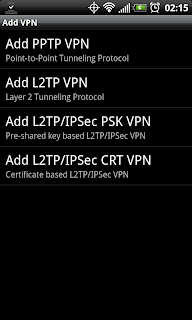 | ||
| Types of VPN available on Android for setup |
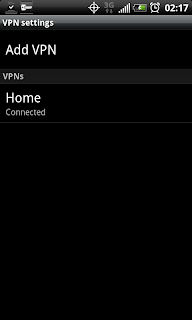 |
| "Home" VPN Network, click to connect |
Once the phone is connected to the VPN, go ahead and open VLC S&C on the phone. Make sure you supply the correct server address for your computer with VLC media player running. Also make sure that VLC has the "web interface" active (view > add interface > web interface).
Here is the home screen in VLC S&C with the menu open. You need to supply the computer information under the connect menu.
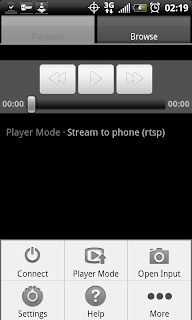 |
| VLC Stream & Convert Menu |
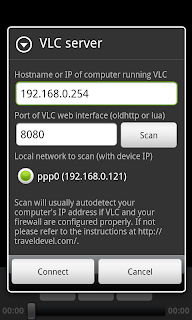 | ||
| VLC Stream & Convert Connect Menu |
Put your player mode on "Stream to Phone RTSP". Open the Browse tab and select your movie/tv/video files you wish to play (.mkv play very, very well).
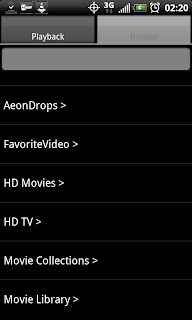 |
| Browse tab displaying folder tree |
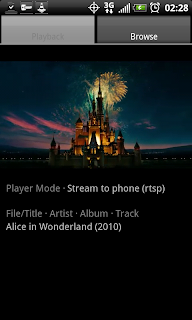 |
| Streaming Alice & Wonderland over 3G in portrait mode |
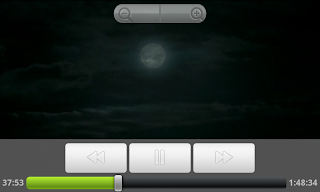 |
| Streaming Alice & Wonderland over 3G in landscape, showing controls |
 |
| Streaming Alice & Wonderland over 3G in landscape, showing subtitles |
 |
| Streaming Avatar over 3G in landscape |
- These files being played by VLC are .mkv rips of HD sources, these are 720p rips (technically VLC S&C will play anything VLC will play, so have at it, I used these for illustrative purposes). If you'd like to show screenshots of other types of files say so in the comments and I'll post them. I have SD, 1080p, other 720p, HDTV rips, etc etc.
- It is hard to take screenshots of live video - so if you see a line, as you can sort of see in the last one, that is because of the movement in the video, not the quality of the playback. I tried to use pause, and then screenshot, but pause reduces the video to half size in the app and negates the purpose of trying to take a screenshot...
- VLC S&C is free, but there is also a paid version. The free version is limited in some functionality, but also has some quality limitations for the H.263 and H.264 codecs. I am using the free version with the H.264 and the bitrate on 768. Aspect ratio is on 16:9. For playback, landscape video width is set at 880 (for the EVO4G). For playback, portrait video width is set at 480. I find these settings to work extremely well on most .mkv for the EVO4G. I hope that comes through on the screenshots.
- Playback is free of stutter and audio is in-sync, clear and crisp
So there you have it...streaming HD (or SD) video over 3G/4G to an Android phone. Using nothing but freeware and windows. The solution is simple, first establish the VPN connection, then fire up VLC Stream & Convert on the phone. Navigate to your files, play, and enjoy HD video on your phone while on the go.
Questions/Comments/Rants/Raves, put them in the comment section. Hopefully this post has been useful for somebody!
.
Thursday, October 28, 2010
VLC Stream & Convert + VPN = Stream HD Over 3G/4G with Android (Part 1)
Laides and Germs,
You'll have to excuse me for not updating in the recent past - been very busy. Working two jobs. One for NASA, and another, well for someone else. Plus there's another job in music. Then there's all that glorious free time, which is mainly used for laundry, bills, drinking, and sleeping. Occasionally eating too. I am a skinny bastard though...
OK, I'll get right to the point - I am a huge fan of VLC Stream & Convert app for Android. It's fucking smoking.
This post is all about using that app to stream HD video to your phone over 3G/4G.
Technically, VLC S&C does this "out of the box". However, you'll find forums, posts, and comments all over talking about problems and issues with RTSP (real time streaming protocol) and just problems in general. You will also run into issues with your carrier - note the setup instructions in that link, for each carrier it can be different, or blocked completely...Hell, even I couldn't get the bitch to work properly over 3G/4G (Sprint). I could connect to the computer running VLC via 3G/4G, but I couldn't play shit. Of course, this doesn't make the app useless, you can totally connect via your local wifi and go about your business. See my earlier post on that bad ass business.
But, if you want 3G/4G HD streaming, I believe I have found the best way to do it - with VPN. It is working for me. In fact, while I'm writing this, I'm streaming Star Wars IV, A New Hope, in 720p (.mkv file) to the EVO4G over 3G with NO STUTTER. Audio is crisp, video is perfect quality. Like I was watching it on my plasma tv.
The solution is so simple, I love it: You first connect the phone to the VPN server on your network, then fire up VLC S&C. Then connect VLC S&C as usual, and viola you are finished.
I'll try to clean this post up a bit in the next few days with more instructions and hopefully some screenshots. For now, this rough bullet list will have to suffice:
Don't forget, if you're behind a router/firewall to get your port forwarding on. For both VLC and the VPN, holes will need to be punched in the firewall. Totally standard and not difficult, but it is required.
If you have questions or problems go ahead and leave a comment. I'll do what I can. If any of you decide to get this going yourself, please post and tell us about your success! I'd love to think that others can get it working too (I'm already working on showing this to my close friends and coworkers)
You'll have to excuse me for not updating in the recent past - been very busy. Working two jobs. One for NASA, and another, well for someone else. Plus there's another job in music. Then there's all that glorious free time, which is mainly used for laundry, bills, drinking, and sleeping. Occasionally eating too. I am a skinny bastard though...
OK, I'll get right to the point - I am a huge fan of VLC Stream & Convert app for Android. It's fucking smoking.
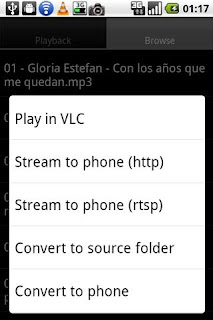 |
| Ex Screenshot of VLC S&C Showing Major Functions |
Technically, VLC S&C does this "out of the box". However, you'll find forums, posts, and comments all over talking about problems and issues with RTSP (real time streaming protocol) and just problems in general. You will also run into issues with your carrier - note the setup instructions in that link, for each carrier it can be different, or blocked completely...Hell, even I couldn't get the bitch to work properly over 3G/4G (Sprint). I could connect to the computer running VLC via 3G/4G, but I couldn't play shit. Of course, this doesn't make the app useless, you can totally connect via your local wifi and go about your business. See my earlier post on that bad ass business.
But, if you want 3G/4G HD streaming, I believe I have found the best way to do it - with VPN. It is working for me. In fact, while I'm writing this, I'm streaming Star Wars IV, A New Hope, in 720p (.mkv file) to the EVO4G over 3G with NO STUTTER. Audio is crisp, video is perfect quality. Like I was watching it on my plasma tv.
The solution is so simple, I love it: You first connect the phone to the VPN server on your network, then fire up VLC S&C. Then connect VLC S&C as usual, and viola you are finished.
I'll try to clean this post up a bit in the next few days with more instructions and hopefully some screenshots. For now, this rough bullet list will have to suffice:
- Android (and iPhone for that matter) can connect to VPNs
- Setup VPN on your local home network (ex, vista setup instructions)
- Connect the phone to the VPN (not too hard, just supply the server address and credentials)
- On a computer on your network, open VLC and run the web interface (see VLC S&C setup)
- On the phone open VLC S&C and connect to that computer running VLC (phone should already be connected to VPN, and therefore using a local address!)
- Browse to your HD files and start streaming to the phone via RTSP as usual, enjoy your HD (720/1080), SD, Audio, whatever on your phone wherever you go!
Don't forget, if you're behind a router/firewall to get your port forwarding on. For both VLC and the VPN, holes will need to be punched in the firewall. Totally standard and not difficult, but it is required.
If you have questions or problems go ahead and leave a comment. I'll do what I can. If any of you decide to get this going yourself, please post and tell us about your success! I'd love to think that others can get it working too (I'm already working on showing this to my close friends and coworkers)
Subscribe to:
Posts (Atom)