Another list of 10 NEW highly recommended and totally FREE Android Apps that you totally need.
Following up on my previous post, 10 Great Android Apps - Shit You Totally Need, we have a whole NEW list of another 10 Android Apps - MORE Shit You Totally Need!
As another belated Christmas gift to yourself, I offer you even MORE shit you totally need. All FREE! This isn't some NYTimes best apps of 2010 puff piece. This article, and my last one, are actually full of QUALITY FREE APPS. I swear to god I see another new article peddling the same crappy pay apps (that they most likely get paid to promote), I'm going to send the author and the editor a rage comic on the subject.
Oh, and if you're really hard up from Christmas, because all you got was a fruitcake and an ugly sweater, I suggest you also browse my list of Top 10 Android FREE Live Wallpapers!
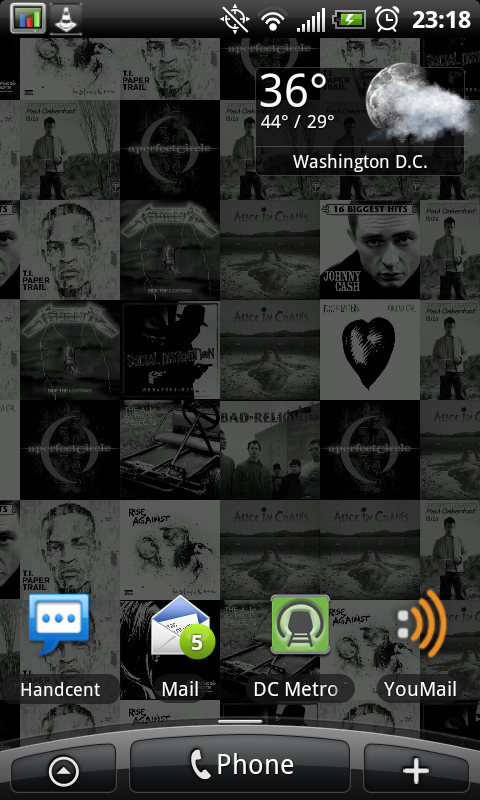
Handcent SMS
The stock SMS/MMS for Android 2.2 is "meh". Handcent is "aww yeah baby". New styles, additional themes, customization, font packs, colors - more settings than you shake a stick at. Hell, it can even make your SMS look like the iPhone with "the bubbles". Some girl I met at a bar described the messaging that way when she saw it, "Oh that has the iPhone bubbles". LOL. Seriously though, it's a killer app and a definite improvement over the stock version. Free.
Liquor Run Mobile
This little app comes in handy more often than you would think! It lists all the liquor stores near you (or anywhere in general). Plus it has cocktail mixing directions and tons of other features. The mascot is perhaps the coolest part though, it's a bottle of booze running. Who couldn't love that mascot? I want a t-shirt with him on it. Free.
AppBrain App Market
Although similar to the Android Marketplace, this is definitely superior to Google's stock offering. There are more ways to sort, search, and filter. You'll find a lot more cool apps through this market than you will in the stock marketplace - guaranteed. Install it. Free.
Winamp
The original badass MP3 player is available on Android. And yes, IT REALLY WHIPS THE LLAMA'S ASS! This is probably the best free player out there. Plus it will sync with your desktop version of Winamp (if you so choose). All in all a really great player and big improvement on the stock media player. Free.
App2SD
Since Android isn't gay, like some of it's competitors...it allows you to install Apps to your microSD card. This is really nice and ultimately allows you to install tons and tons of apps. However, it's tough to know which apps support this feature of running on SD (not all do). Furthermore, you have to do it by hand - individually. SUCKS. But this little app solves all that. It searches your phone apps, finds which ones can be moved to SD, and helps you move them more efficiently. Free.
GTunes Music
GTunes is kind of like Google, for music. Search, and download. It's that easy. It will let you preview before you download too. The app also has charts for billboard, specific genres, and countries around the world. So if you're just looking for some 'Pop', hit up the chart, and start searching. Downloads MP3's right to the phone. Somehow I don't think the walled garden is down with that...so jump that wall, sucka! Free.
PageOnce Travel
I did an earlier article, awhile back, on a head to head comparison of PageOnce Travel and TripIt. Both apps rock, and both apps make this list. PageOnce is still slightly ahead because it offers free flight status updates. In addition to this handy feature it auto-creates your trips from your accounts. Very nice to have for anyone who travels, even if it isn't that frequent. Free.
TripIt
TripIt is still a badass app, and it sure as hell ain't no slouch when it comes to travel organization. Now that it can auto-create trips from confirmations sent to your Gmail account, it's taking big steps forward. It also handles things like dinner reservations, special events, etc. etc. I run both PageOnce Travel and TripIt, and you should too. Don't get caught at the airport or the hotel without your confirmation number. You're holding up the damn line! Free.
XBMC Remote
Ok, so first off, if you don't have XBMC...you should. God knows you have a ton of media on your computer(s). Music, Pictures, Video, Movies, TV Shows - I know you have it. Install XBMC, get a media library, and watch your content like a pro. Impress your friends. Find a nerdy girl and get her on your couch. Then, pull out your phone and use it as the remote. Aw yeah, baby...that's right. My full review is here. Free
ADW Launcher
This is the beginings of full customization of your Android phone (minus a custom rom, of course). ADW, and it's array of themes + customization give you complete control over the look and feel of the phone. Change the drawer, change the icons, change the status displays, change it all. There really isn't a limit once you get ADW Launcher going. Which is very easy. Download, install, find a theme, and use it. Then hit your home button. Done. Free. (maybe in the future I'll do a full howto on this...)
So there you go. 10 Great Android Apps - MORE Shit You Totally Need. Combined with my last list, that's 20 FREE and HIGH QUALITY Apps for Android. The best part is, I didn't have to sell out to write these lists, nor did I have to study Journalism in college and suckup to some loser in a turtle neck. New York Times, USA Today, Wall Street Journal - I'm looking at you fools. Your app lists suck. Mine do not. Stoneycase - 2, MSM - 0.
Showing posts with label htc. Show all posts
Monday, January 3, 2011
Sunday, December 5, 2010
Ten Awesome Android Live Wallpapers - Free for Download
A selection of 10 awesome Live Wallpapers for your Android phone, all FREE!
Android, unlike the iPhone, has "Live Wallpapers". Wallpapers that move, play videos, play games, and are interactive. Below are 10 awesome Android Live Wallpapers that you can download to your phone. Each live wallpaper is free, and I have provided screenshots for you as well. Unfortunately I didn't go to the trouble of making .gif's or anything - so the screenshots are static images. However I try to describe the movement or "live" aspects of each in the description. A link is provided to the live wallpaper in App Brain so you can download it too.
Let me know which ones you like and don't like, or if you have any favorites of your own!
1. Galactic Core
Very nice live wallpaper of a whirling galaxy that you can tilt and control. The free version has limited settings, but there is a pay version that gives full control. Detail and quality of the wallpaper is very good and the live movement is excellent as well.
2. Pac-Man
Really cool live wallpaper of the iconic arcade game. Pac-Man roams the levels avoiding the ghosts and doing what he does best. The AI is pretty good on this wallpaper, Pac-Man avoids the ghosts, collects points, gets the power-ups and then eats the ghosts.
3. Substrate
This is a collection of live wallpapers - each with it's own "substrate" flavor. I highly recommend this live wallpaper for the variety and the customization. Each live wallpaper comes complete with full settings, even though it's free. Shown here are Sandollar, Guts, and Sand Traveler. The live wallpapers are drawn on the screen, detailed, and then repeated.
4. Flying Toasters
From waaayy back when, the flying toaster returns! Toasters and toast fly across your screen. Need I say more? Nostalgia!
5. Flurry
The Mac OSX style "Flurry". For anyone who's ever owned a mac, used a mac, or knows what I'm talking about...this is a live wallpaper version of the Flurry screensaver. Pretty much a perfect copy of it too.
6. Galaxy Live
This is another collection of live wallpapers - each a different type of galaxy or nebula. Although not exactly true to the real stellar phenomenon, each live wallpaper is quite a sight. There are more than a half dozen to choose from, each various colors and detail. Movement is pretty much the same amongst them all, but the colors and details provide a nice variety.
7. 3D Matrix Code
There a lot of Matrix code live wallpapers, and they all pretty much do the same thing - stream Matrix code on your screen. This one has a slightly different twist by adding a 3D effect. There is some depth, or distance, to the code that changes its size. The developer also added some flames, which are actually a nice touch.
8. Living Music (Album Art)
This live wallpaper takes your album art and creates a live wallpaper with it. Album art is randomized and interchanged creating a nice look and feel. The album art is not colored though, but the overall grey color keeps the screen from feeling cluttered. There are other version of this same type of live wallpaper, though most of them are paid versions.
9. Liquid Particles
A cool live wallpaper that puts colored light particles on your screen that you can interact with. As you tap the screen the particles fly about until finally coming to rest. Tap the screen again and they continue to fly. Do nothing for awhile and they start flying on their own.
10. Metal Slug Zombies

Some live wallpapers also double as games. This one is a take on a fantastic old game - metal slug. Zombies walk across the screen and you bomb them. Tap the screen to drop the bomb. A plane flies in, drops the bomb, and the zombies explode. There are lots of settings that allow for customization of the background, the zombies, bombs, and other features. It also keeps track of your score.

There we have it, a top 10 list of free Live Wallpapers for your Android device. Let me know if you have any suggestions to add to the list!
Android, unlike the iPhone, has "Live Wallpapers". Wallpapers that move, play videos, play games, and are interactive. Below are 10 awesome Android Live Wallpapers that you can download to your phone. Each live wallpaper is free, and I have provided screenshots for you as well. Unfortunately I didn't go to the trouble of making .gif's or anything - so the screenshots are static images. However I try to describe the movement or "live" aspects of each in the description. A link is provided to the live wallpaper in App Brain so you can download it too.
Let me know which ones you like and don't like, or if you have any favorites of your own!
1. Galactic Core
Very nice live wallpaper of a whirling galaxy that you can tilt and control. The free version has limited settings, but there is a pay version that gives full control. Detail and quality of the wallpaper is very good and the live movement is excellent as well.
2. Pac-Man
Really cool live wallpaper of the iconic arcade game. Pac-Man roams the levels avoiding the ghosts and doing what he does best. The AI is pretty good on this wallpaper, Pac-Man avoids the ghosts, collects points, gets the power-ups and then eats the ghosts.
3. Substrate
This is a collection of live wallpapers - each with it's own "substrate" flavor. I highly recommend this live wallpaper for the variety and the customization. Each live wallpaper comes complete with full settings, even though it's free. Shown here are Sandollar, Guts, and Sand Traveler. The live wallpapers are drawn on the screen, detailed, and then repeated.
4. Flying Toasters
From waaayy back when, the flying toaster returns! Toasters and toast fly across your screen. Need I say more? Nostalgia!
5. Flurry
The Mac OSX style "Flurry". For anyone who's ever owned a mac, used a mac, or knows what I'm talking about...this is a live wallpaper version of the Flurry screensaver. Pretty much a perfect copy of it too.
6. Galaxy Live
This is another collection of live wallpapers - each a different type of galaxy or nebula. Although not exactly true to the real stellar phenomenon, each live wallpaper is quite a sight. There are more than a half dozen to choose from, each various colors and detail. Movement is pretty much the same amongst them all, but the colors and details provide a nice variety.
7. 3D Matrix Code
There a lot of Matrix code live wallpapers, and they all pretty much do the same thing - stream Matrix code on your screen. This one has a slightly different twist by adding a 3D effect. There is some depth, or distance, to the code that changes its size. The developer also added some flames, which are actually a nice touch.
8. Living Music (Album Art)
This live wallpaper takes your album art and creates a live wallpaper with it. Album art is randomized and interchanged creating a nice look and feel. The album art is not colored though, but the overall grey color keeps the screen from feeling cluttered. There are other version of this same type of live wallpaper, though most of them are paid versions.
9. Liquid Particles
A cool live wallpaper that puts colored light particles on your screen that you can interact with. As you tap the screen the particles fly about until finally coming to rest. Tap the screen again and they continue to fly. Do nothing for awhile and they start flying on their own.
10. Metal Slug Zombies
Some live wallpapers also double as games. This one is a take on a fantastic old game - metal slug. Zombies walk across the screen and you bomb them. Tap the screen to drop the bomb. A plane flies in, drops the bomb, and the zombies explode. There are lots of settings that allow for customization of the background, the zombies, bombs, and other features. It also keeps track of your score.
There we have it, a top 10 list of free Live Wallpapers for your Android device. Let me know if you have any suggestions to add to the list!
Friday, December 3, 2010
Calibrate HTC EVO 4G Battery - EVO Tips & Tricks
Get the most of out of your HTC EVO 4G battery. Calibrate and increase its performance!
As a followup to my earlier post on "how to save juice", I offer two tricks for ultimately increasing battery life.
First trick, a one-time only calibration:
This is a one-time only procedure.
Second trick, repeatedly filling the battery to increase the full point.
This can be done repeatedly and it has been proven to work very well:
Now...with the phone fully powered off:
1. Unplug the charger.
2. Wait until LED goes off.
3. Plug charger back in until the LED turns green. When it turns green, unplug the charger again repeat the cycle. In other words, unplug charger, wait for led to go off, plug charger back in, wait for led to turn green.
4. Repeat steps 1-3, oh say, 10 or more times. This may take anywhere from 30 seconds to 30 mins per cycle. (from when led green, unplug charger, wait for led off, plug charger back in, wait for led to go green again.) Typically only about 1 minute though.
Couple words on what the second trick is doing (this works for most any phone, really):
We are basically doing the opposite of a complete drain and recharge, which was common with old batteries (NiCad). We are continually "adding juice" by fooling the circuit. Notice that steps have you charge (orange LED) until full (Green LED). Then we unplug, and recharge (orange LED). The goal is not to empty the battery and recharge like ni-cads (those have memory, these don't). These are lithiums, so we need to do the opposite..We are trying to fill up the battery, i.e. make the "full point" more full than it is now. Think of it like like cheating in capacity. Since it's a "trickle charge" you don't really have to worry about overload - that's what the circuity is there for in the first place. We just want to fool the circuitry a bit.
This method seems to work pretty well, and you can easily notice that
As a followup to my earlier post on "how to save juice", I offer two tricks for ultimately increasing battery life.
First trick, a one-time only calibration:
This is a one-time only procedure.
- Turn the EVO on and charge it for 8 hours.
- Unplug it and turn it off.
- Plug it back in and charge for 1 hour.
- Unplug it and turn it on.
- Wait 2 minutes and turn it off.
- Plug it back in and charge for 1 hour.
Second trick, repeatedly filling the battery to increase the full point.
This can be done repeatedly and it has been proven to work very well:
- With the phone in the on position - Fully charge the battery (until the led turns green at the top.)
- Once the LED turns green, unplug the charger until the led goes off. (this normally takes 5-10 secs after unplugging the charger from the phone)
- After the led goes off, immediately plug the charger back in.
- When the LED turns green, power off the phone. (this shouldn't take too long for LED to turn green))
![]() |
| Green LED = Finished Charging, Full |
1. Unplug the charger.
2. Wait until LED goes off.
3. Plug charger back in until the LED turns green. When it turns green, unplug the charger again repeat the cycle. In other words, unplug charger, wait for led to go off, plug charger back in, wait for led to turn green.
4. Repeat steps 1-3, oh say, 10 or more times. This may take anywhere from 30 seconds to 30 mins per cycle. (from when led green, unplug charger, wait for led off, plug charger back in, wait for led to go green again.) Typically only about 1 minute though.
| Orange LED = Charging |
Couple words on what the second trick is doing (this works for most any phone, really):
We are basically doing the opposite of a complete drain and recharge, which was common with old batteries (NiCad). We are continually "adding juice" by fooling the circuit. Notice that steps have you charge (orange LED) until full (Green LED). Then we unplug, and recharge (orange LED). The goal is not to empty the battery and recharge like ni-cads (those have memory, these don't). These are lithiums, so we need to do the opposite..We are trying to fill up the battery, i.e. make the "full point" more full than it is now. Think of it like like cheating in capacity. Since it's a "trickle charge" you don't really have to worry about overload - that's what the circuity is there for in the first place. We just want to fool the circuitry a bit.
This method seems to work pretty well, and you can easily notice that
- You fill up the phone battery by charging it until the LED is green
- When you unplug, and the LED light goes off
- If you immediately plug the phone back in, the LED is ORANGE. Why?
- Because the battery can take more juice - hence the 1 minute or longer cycle times
- Each time you do this and it takes time to go from Orange to Green, you're doing good
Monday, November 29, 2010
How to Improve HTC EVO 4G Battery Life - 21 Tips & Tricks
A how-to guide on improving the battery life of your HTC EVO 4G.
This is Part 1 of a 2 Part series on HTC EVO Batteries. This post will provide 21 tips & tricks to improve your HTC EVO 4G battery life. The second post will deal with how to calibrate your battery to get maximum capacity (performance).
1. Lower screen brightness. Go to Settings - Sound and Display - Brightness. Reduce the brightness using the slide or select "Automatic brightness" box to let the EVO use its sensors to adjust the screen according to the ambient light. There are also widgets for screen brightness in the Android Marketplace. I prefer just setting to Automatic.
2. Add the widgets for 4G, WiFi, GPS, and Bluetooth to a home screen. Use the + button on your home screen. There are stock widgets that let you turn these radios on/off. Also, there is a Power Widget that has a nice UI as well with the radios stacked across. Take your pick. This makes it really easy to quickly turn radios on/off, plus the widgets actually look pretty good.
3. Disable WiFi and 4G network notifications. Go to Settings - Wireless and Networks - Wi-Fi settings and for 4G, go to Settings - Wireless and Networks - 4G settings. Note, you need to turn on 4G to disable the notifications. Otherwise the option is greyed out. The logic is undeniable!
4. Disable "always on" mobile data. Go to Settings - Wireless and Networks- Mobile networks. Uncheck the box for "Enable always-on mobile data". So far I have no problems to report here, but please let me know if you run into anything in the comments! Note, a warning will be provided indicating applications will need manual refresh...mine did not. Mail is still received, SMS, etc etc.
5. Turn off background data. If you are really hard up for juice, go to Settings - Accounts and Sync and uncheck the Background data box so that applications cannot sync, send, and receive data automatically. Beware, this will impact HTC mail.
6. Reduce your screen timeout interval. The EVO's screen can be set to automatically turn off when you don't interact with it for a predetermined amount of time: 15 seconds, 30 seconds, 1 minute, 2 minutes, 10 minutes, or never. 1 or 2 minutes is pretty effective. It gives quick reads on the phone without becoming too annoying like 15 or 30 seconds.
7. Manually turn off the screen when not in use. The power button at the top of the EVO turns the screen off. Push it when not using the phone. Come on, I know you can do it...
8. Turn off auto-sync. Go to Settings - Accounts and Sync - Auto-sync. This is also not really recommend as a "useful" tip. Keep reading for a better option.
9. Change auto-sync frequency (Weather, News, Stocks, Twitter, Facebook,etc).Turning off auto-sync is kind of ridiculous, so take a look at adjusting how frequently data is retrieved/updated. The settings vary depending on the app (and some don't offer the setting at all), but it's generally found in the same place: Settings - Accounts and Sync. Select an account from the list and then tap "Account settings" to change the sync frequency.
10. Disable wireless network location services when not needed. Go to Settings - Location - Use Wireless Networks. Note that this (or one of the other options) needs to be enabled if you want to see and/or use your location in apps like Maps. So again, not really recommended.
11. Turn off window animations. I know it's nice to look at and fun to show off, but eye candy uses extra power (albeit not very much). To turn it off, go to Settings - Sound and Display - Animation - No Animations.
12. Don't use a live wallpaper. Live wallpapers do use more juice than static wallpapers. Personally, I like the Live Wallpapers.
13. Use a dark wallpaper. The theory goes something like this: bright white wallpapers are more bright on the screen, and are therefore using more juice. Dark wallpapers just that, darker and the screen is dimmer. Less juice.
14. Change WiFi sleep policy. So the idea is this: when WiFi sleeps, 3G/4G wakes up to sync, get email, and retrieve other data. Since 3G will eat up more battery than WiFi, we change the sleep policy, so that Wifi does not sleep. Go to Settings - Wireless and Networks - Wi-Fi Settings. Press the Menu button, then Advanced, then Wi-Fi sleep policy. Choose "Never".
15. Monitor your running services (or consider using a task killer). Android 2.2 Froyo has taken more steps toward allowing you what services to kill, but beware, some services just start right back up after being stopped. You can add the Running Services widget to a home screen and view what's running in the background. You can also download a third-party task killer from Android Market and kill selected apps to free up some resources and potentially save some power. ESTaskManager isn't bad, and it has it's own additional widget will allow you to kill services/tasks from a home screen.
16. Choose your home screen widgets carefully. Widgets that need access to the internet to update information (e.g., Facebook, Twitter, Engadget, Slacker Radio, Weather, Stocks, News, Mail) can suck up a lot of juice if not managed well, so choose them carefully and set their sync/update frequencies to a reasonable interval.
17. Disable notification lights. This may not be practical if you're someone who really needs/wants to know when something happens on your phone when you're not looking, but for everyone else, feel free to turn off those notifications. Go to Settings - Sound and Display - Notification, and uncheck all the boxes if you can handle notifications being turned off (no more blinking LEDs for SMS, Mail, Missed Call, etc.)
18. Turn off phone vibration. Go to Settings - Sound and Display - Phone, select vibrate and turn it off.
19. Turn off audible touch tones. In Settings - Sound and Display, uncheck Audible selection and turn off Audible touch tones.
20. Turn off haptic feedback. Haptic feedback is on by default. It vibrates the phone slightly when using the keyboard. You can turn this off, go to Settings - Language and Keyboard - Touch Input - Text Input; Vibrate when typing.
21. Turn off GTalk Automatic Sign-in. Turn off Google Talk feature because it stays running constantly in the background. Heres how: Go to your Apps: > Open "Talk" > Press the Menu Button: > Press "More" > Press "Settings" > Un-check the "Automatic Login". All this is going to do is when you turn on your phone Google Talk will not Auto turn on and start draining your battery. If you use Google Talk then just open it when you want to use it. Be sure though when you are finished using it you go to"Menu" > "More" > "Sign-out"
So that's it, 21 tips and tricks for improving your HTC EVO 4G battery life. If you have any additional tips or tricks to submit let me know in the comments and I'll update this list!
Look for another post on how to calibrate the battery to get the best performance from your HTC EVO 4G very soon!
This is Part 1 of a 2 Part series on HTC EVO Batteries. This post will provide 21 tips & tricks to improve your HTC EVO 4G battery life. The second post will deal with how to calibrate your battery to get maximum capacity (performance).
1. Lower screen brightness. Go to Settings - Sound and Display - Brightness. Reduce the brightness using the slide or select "Automatic brightness" box to let the EVO use its sensors to adjust the screen according to the ambient light. There are also widgets for screen brightness in the Android Marketplace. I prefer just setting to Automatic.
2. Add the widgets for 4G, WiFi, GPS, and Bluetooth to a home screen. Use the + button on your home screen. There are stock widgets that let you turn these radios on/off. Also, there is a Power Widget that has a nice UI as well with the radios stacked across. Take your pick. This makes it really easy to quickly turn radios on/off, plus the widgets actually look pretty good.
3. Disable WiFi and 4G network notifications. Go to Settings - Wireless and Networks - Wi-Fi settings and for 4G, go to Settings - Wireless and Networks - 4G settings. Note, you need to turn on 4G to disable the notifications. Otherwise the option is greyed out. The logic is undeniable!
4. Disable "always on" mobile data. Go to Settings - Wireless and Networks- Mobile networks. Uncheck the box for "Enable always-on mobile data". So far I have no problems to report here, but please let me know if you run into anything in the comments! Note, a warning will be provided indicating applications will need manual refresh...mine did not. Mail is still received, SMS, etc etc.
5. Turn off background data. If you are really hard up for juice, go to Settings - Accounts and Sync and uncheck the Background data box so that applications cannot sync, send, and receive data automatically. Beware, this will impact HTC mail.
6. Reduce your screen timeout interval. The EVO's screen can be set to automatically turn off when you don't interact with it for a predetermined amount of time: 15 seconds, 30 seconds, 1 minute, 2 minutes, 10 minutes, or never. 1 or 2 minutes is pretty effective. It gives quick reads on the phone without becoming too annoying like 15 or 30 seconds.
7. Manually turn off the screen when not in use. The power button at the top of the EVO turns the screen off. Push it when not using the phone. Come on, I know you can do it...
8. Turn off auto-sync. Go to Settings - Accounts and Sync - Auto-sync. This is also not really recommend as a "useful" tip. Keep reading for a better option.
9. Change auto-sync frequency (Weather, News, Stocks, Twitter, Facebook,etc).Turning off auto-sync is kind of ridiculous, so take a look at adjusting how frequently data is retrieved/updated. The settings vary depending on the app (and some don't offer the setting at all), but it's generally found in the same place: Settings - Accounts and Sync. Select an account from the list and then tap "Account settings" to change the sync frequency.
- Stocks will have the setting greyed out, if you're stock
- Facebook's lowest level of sync activity is "Once a Day" (fcuking facebook)
- News can go to "Manual"
- Weather's lowest setting is also "Once a Day" (I like every 6, or 12 hours)
- Exchange ActiveSync will have the ability to set Peak and Off-Peak activity
10. Disable wireless network location services when not needed. Go to Settings - Location - Use Wireless Networks. Note that this (or one of the other options) needs to be enabled if you want to see and/or use your location in apps like Maps. So again, not really recommended.
11. Turn off window animations. I know it's nice to look at and fun to show off, but eye candy uses extra power (albeit not very much). To turn it off, go to Settings - Sound and Display - Animation - No Animations.
12. Don't use a live wallpaper. Live wallpapers do use more juice than static wallpapers. Personally, I like the Live Wallpapers.
13. Use a dark wallpaper. The theory goes something like this: bright white wallpapers are more bright on the screen, and are therefore using more juice. Dark wallpapers just that, darker and the screen is dimmer. Less juice.
14. Change WiFi sleep policy. So the idea is this: when WiFi sleeps, 3G/4G wakes up to sync, get email, and retrieve other data. Since 3G will eat up more battery than WiFi, we change the sleep policy, so that Wifi does not sleep. Go to Settings - Wireless and Networks - Wi-Fi Settings. Press the Menu button, then Advanced, then Wi-Fi sleep policy. Choose "Never".
15. Monitor your running services (or consider using a task killer). Android 2.2 Froyo has taken more steps toward allowing you what services to kill, but beware, some services just start right back up after being stopped. You can add the Running Services widget to a home screen and view what's running in the background. You can also download a third-party task killer from Android Market and kill selected apps to free up some resources and potentially save some power. ESTaskManager isn't bad, and it has it's own additional widget will allow you to kill services/tasks from a home screen.
16. Choose your home screen widgets carefully. Widgets that need access to the internet to update information (e.g., Facebook, Twitter, Engadget, Slacker Radio, Weather, Stocks, News, Mail) can suck up a lot of juice if not managed well, so choose them carefully and set their sync/update frequencies to a reasonable interval.
17. Disable notification lights. This may not be practical if you're someone who really needs/wants to know when something happens on your phone when you're not looking, but for everyone else, feel free to turn off those notifications. Go to Settings - Sound and Display - Notification, and uncheck all the boxes if you can handle notifications being turned off (no more blinking LEDs for SMS, Mail, Missed Call, etc.)
18. Turn off phone vibration. Go to Settings - Sound and Display - Phone, select vibrate and turn it off.
19. Turn off audible touch tones. In Settings - Sound and Display, uncheck Audible selection and turn off Audible touch tones.
20. Turn off haptic feedback. Haptic feedback is on by default. It vibrates the phone slightly when using the keyboard. You can turn this off, go to Settings - Language and Keyboard - Touch Input - Text Input; Vibrate when typing.
- You can disable haptics in other areas of the system by going to Settings - Sound and Display - Haptic Feedback.
21. Turn off GTalk Automatic Sign-in. Turn off Google Talk feature because it stays running constantly in the background. Heres how: Go to your Apps: > Open "Talk" > Press the Menu Button: > Press "More" > Press "Settings" > Un-check the "Automatic Login". All this is going to do is when you turn on your phone Google Talk will not Auto turn on and start draining your battery. If you use Google Talk then just open it when you want to use it. Be sure though when you are finished using it you go to"Menu" > "More" > "Sign-out"
So that's it, 21 tips and tricks for improving your HTC EVO 4G battery life. If you have any additional tips or tricks to submit let me know in the comments and I'll update this list!
Look for another post on how to calibrate the battery to get the best performance from your HTC EVO 4G very soon!
Thursday, November 4, 2010
VLC Stream & Convert + VPN = Stream HD Over 3G/4G with Android (Part 3)
Following up on this topic, I have some "Tips & Tricks" for users seeking to stream HD/SD to their Android phone over 3G/4G.
Couple things up front:
47KRYQWK3Q5P
Couple things up front:
- A New version of VLC S&C has been released by the developer. I suggest you download it! You may notice that VPN is now a prominent part of his app! :D :D
- Along with the updated app version, the developer has posted a VPN setup guide here. I suggest you take a look at it. You may notice some similarities! This is a good thing! As I mentioned before in my earlier posts, I believe streaming over VPN to be the best solution for 3G/4G connections.
- For security purposes, make sure you give your VPN username and password some serious consideration. "vpnuser" is fine, or whatever (vpnass, vpnyourmom, these are also good!)...but for the love of god, give it a decent password. Remember what you're doing here people.
- Enable the Wifi radio, but do not connect to a Wifi network when streaming over 3G/4G. I have had problems streaming when Wifi radio is not on. I am unsure as to why this is, but I have also read of other users having the same issue.
- When possible, try to avoid switching from 3G to 4G. I know I know, but if you suddenly decide to turn on 4G in the middle of watching a movie, at say, the National Mall, be prepared for a wait, and possibly the need to reconnect to both the VPN and the remote VLC server.
- Moving around is just fine, as is roaming from cell tower to cell tower, however you may notice some buffering. This is fine, just be patient...
- Enable encryption in the Android VPN settings, as well as checking the box in Windows VPN setup to "require all users to secure their passwords". See the VPN setup info for more on this subject.
- Use H264 for your streaming, and experiment with the bitrate/quality settings. You may find that reducing the quality setting will improve streaming. The developer has a comment on quality settings as well in their VPN setup page
- Check which version of VLC you are running on the computer. I recommend running VLC 1.1.3, or VLC 1.1.2
- Last, but certainly not least, consider buying the VLC S&C Pro version, or donating. Support the developer if you like what's going on. Of course you can fully utilize the features of the free version to get the job done, but thats not the point - give credit where credit is due. Its not that much money anyway. Besides, the guy has airplane tickets to buy, I'm sure ;)
47KRYQWK3Q5P
Friday, October 29, 2010
VLC Stream & Convert + VPN = Stream HD Over 3G/4G with Android (Part 2)
Alright, as promised, here are some screenshots to help with the setup so you can stream HD over 3G/4G to your Android phone.
First, recall my previous post on the subject and the tools required to get the job done
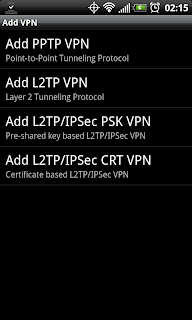
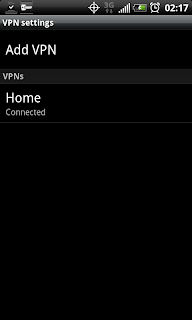
Once you setup the VPN, which for PPTP is as easy as providing the server address (IP address) and credentials (user/pass), you will have a VPN network that you can connect to. Screenshot below shows a "Home" VPN after it has been added to the phone.
When you click the network to connect to the VPN you will need to supply the user/pass. This user/pass is the one you setup on the computer with the incoming VPN connection. Once connected it will tell you so, and place an active key icon in the phone status bar.
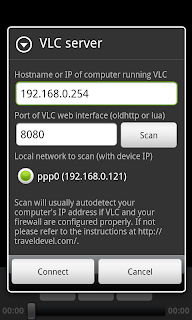
Once the phone is connected to the VPN, go ahead and open VLC S&C on the phone. Make sure you supply the correct server address for your computer with VLC media player running. Also make sure that VLC has the "web interface" active (view > add interface > web interface).
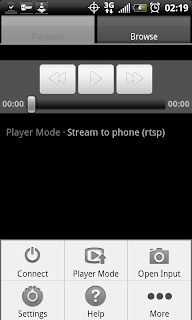
Here is the home screen in VLC S&C with the menu open. You need to supply the computer information under the connect menu.
Once finished go ahead and click connect. If it all is going well you will get a connect prompt, and the VLC logo in the phone status bar will be active. When VLC S&C is disconnected that icon will have a red X through it. Plus you will get an error, "can not connect to bla bla bla."
Put your player mode on "Stream to Phone RTSP". Open the Browse tab and select your movie/tv/video files you wish to play (.mkv play very, very well).
Now, for some example screenshots of the quality you can expect to come through on 3G:
Couple of notes on the example screenshots:
So there you have it...streaming HD (or SD) video over 3G/4G to an Android phone. Using nothing but freeware and windows. The solution is simple, first establish the VPN connection, then fire up VLC Stream & Convert on the phone. Navigate to your files, play, and enjoy HD video on your phone while on the go.
Questions/Comments/Rants/Raves, put them in the comment section. Hopefully this post has been useful for somebody!
.
First, recall my previous post on the subject and the tools required to get the job done
- Phone with Android (I suppose this could work on iPhone/iPad as well)
- Computer for VPN Server (allows phone to VPN connect to your LAN)
- Computer for VLC media player (free software, must activate web interface)
- VLC Stream & Convert app from Android Marketplace (free)
![]() | ||
| Types of VPN available on Android for setup |
![]() |
| "Home" VPN Network, click to connect |
Once the phone is connected to the VPN, go ahead and open VLC S&C on the phone. Make sure you supply the correct server address for your computer with VLC media player running. Also make sure that VLC has the "web interface" active (view > add interface > web interface).
Here is the home screen in VLC S&C with the menu open. You need to supply the computer information under the connect menu.
![]() |
| VLC Stream & Convert Menu |
![]() | ||
| VLC Stream & Convert Connect Menu |
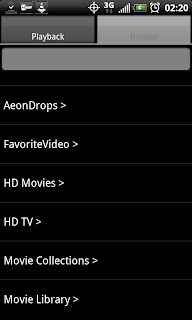
Put your player mode on "Stream to Phone RTSP". Open the Browse tab and select your movie/tv/video files you wish to play (.mkv play very, very well).
![]() |
| Browse tab displaying folder tree |
![]() |
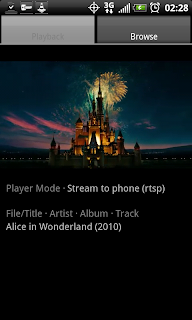
| Streaming Alice & Wonderland over 3G in portrait mode |
![]() |
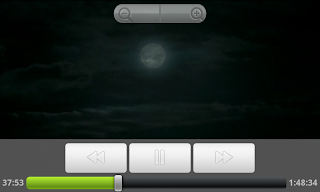
| Streaming Alice & Wonderland over 3G in landscape, showing controls |
![]() |
| Streaming Alice & Wonderland over 3G in landscape, showing subtitles |
![]() |
| Streaming Avatar over 3G in landscape |
- These files being played by VLC are .mkv rips of HD sources, these are 720p rips (technically VLC S&C will play anything VLC will play, so have at it, I used these for illustrative purposes). If you'd like to show screenshots of other types of files say so in the comments and I'll post them. I have SD, 1080p, other 720p, HDTV rips, etc etc.
- It is hard to take screenshots of live video - so if you see a line, as you can sort of see in the last one, that is because of the movement in the video, not the quality of the playback. I tried to use pause, and then screenshot, but pause reduces the video to half size in the app and negates the purpose of trying to take a screenshot...
- VLC S&C is free, but there is also a paid version. The free version is limited in some functionality, but also has some quality limitations for the H.263 and H.264 codecs. I am using the free version with the H.264 and the bitrate on 768. Aspect ratio is on 16:9. For playback, landscape video width is set at 880 (for the EVO4G). For playback, portrait video width is set at 480. I find these settings to work extremely well on most .mkv for the EVO4G. I hope that comes through on the screenshots.
- Playback is free of stutter and audio is in-sync, clear and crisp
So there you have it...streaming HD (or SD) video over 3G/4G to an Android phone. Using nothing but freeware and windows. The solution is simple, first establish the VPN connection, then fire up VLC Stream & Convert on the phone. Navigate to your files, play, and enjoy HD video on your phone while on the go.
Questions/Comments/Rants/Raves, put them in the comment section. Hopefully this post has been useful for somebody!
.
Thursday, October 28, 2010
VLC Stream & Convert + VPN = Stream HD Over 3G/4G with Android (Part 1)
Laides and Germs,
You'll have to excuse me for not updating in the recent past - been very busy. Working two jobs. One for NASA, and another, well for someone else. Plus there's another job in music. Then there's all that glorious free time, which is mainly used for laundry, bills, drinking, and sleeping. Occasionally eating too. I am a skinny bastard though...
OK, I'll get right to the point - I am a huge fan of VLC Stream & Convert app for Android. It's fucking smoking.
This post is all about using that app to stream HD video to your phone over 3G/4G.
Technically, VLC S&C does this "out of the box". However, you'll find forums, posts, and comments all over talking about problems and issues with RTSP (real time streaming protocol) and just problems in general. You will also run into issues with your carrier - note the setup instructions in that link, for each carrier it can be different, or blocked completely...Hell, even I couldn't get the bitch to work properly over 3G/4G (Sprint). I could connect to the computer running VLC via 3G/4G, but I couldn't play shit. Of course, this doesn't make the app useless, you can totally connect via your local wifi and go about your business. See my earlier post on that bad ass business.
But, if you want 3G/4G HD streaming, I believe I have found the best way to do it - with VPN. It is working for me. In fact, while I'm writing this, I'm streaming Star Wars IV, A New Hope, in 720p (.mkv file) to the EVO4G over 3G with NO STUTTER. Audio is crisp, video is perfect quality. Like I was watching it on my plasma tv.
The solution is so simple, I love it: You first connect the phone to the VPN server on your network, then fire up VLC S&C. Then connect VLC S&C as usual, and viola you are finished.
I'll try to clean this post up a bit in the next few days with more instructions and hopefully some screenshots. For now, this rough bullet list will have to suffice:
Don't forget, if you're behind a router/firewall to get your port forwarding on. For both VLC and the VPN, holes will need to be punched in the firewall. Totally standard and not difficult, but it is required.
If you have questions or problems go ahead and leave a comment. I'll do what I can. If any of you decide to get this going yourself, please post and tell us about your success! I'd love to think that others can get it working too (I'm already working on showing this to my close friends and coworkers)
You'll have to excuse me for not updating in the recent past - been very busy. Working two jobs. One for NASA, and another, well for someone else. Plus there's another job in music. Then there's all that glorious free time, which is mainly used for laundry, bills, drinking, and sleeping. Occasionally eating too. I am a skinny bastard though...
OK, I'll get right to the point - I am a huge fan of VLC Stream & Convert app for Android. It's fucking smoking.
![]() |
| Ex Screenshot of VLC S&C Showing Major Functions |
Technically, VLC S&C does this "out of the box". However, you'll find forums, posts, and comments all over talking about problems and issues with RTSP (real time streaming protocol) and just problems in general. You will also run into issues with your carrier - note the setup instructions in that link, for each carrier it can be different, or blocked completely...Hell, even I couldn't get the bitch to work properly over 3G/4G (Sprint). I could connect to the computer running VLC via 3G/4G, but I couldn't play shit. Of course, this doesn't make the app useless, you can totally connect via your local wifi and go about your business. See my earlier post on that bad ass business.
But, if you want 3G/4G HD streaming, I believe I have found the best way to do it - with VPN. It is working for me. In fact, while I'm writing this, I'm streaming Star Wars IV, A New Hope, in 720p (.mkv file) to the EVO4G over 3G with NO STUTTER. Audio is crisp, video is perfect quality. Like I was watching it on my plasma tv.
The solution is so simple, I love it: You first connect the phone to the VPN server on your network, then fire up VLC S&C. Then connect VLC S&C as usual, and viola you are finished.
I'll try to clean this post up a bit in the next few days with more instructions and hopefully some screenshots. For now, this rough bullet list will have to suffice:
- Android (and iPhone for that matter) can connect to VPNs
- Setup VPN on your local home network (ex, vista setup instructions)
- Connect the phone to the VPN (not too hard, just supply the server address and credentials)
- On a computer on your network, open VLC and run the web interface (see VLC S&C setup)
- On the phone open VLC S&C and connect to that computer running VLC (phone should already be connected to VPN, and therefore using a local address!)
- Browse to your HD files and start streaming to the phone via RTSP as usual, enjoy your HD (720/1080), SD, Audio, whatever on your phone wherever you go!
Don't forget, if you're behind a router/firewall to get your port forwarding on. For both VLC and the VPN, holes will need to be punched in the firewall. Totally standard and not difficult, but it is required.
If you have questions or problems go ahead and leave a comment. I'll do what I can. If any of you decide to get this going yourself, please post and tell us about your success! I'd love to think that others can get it working too (I'm already working on showing this to my close friends and coworkers)
Thursday, September 23, 2010
VLC Stream & Convert - Stream Video to Phone
There is a free app out for Android in the Marketplace called VLC Stream & Convert. It does exactly what it says, and then some:
Setup is easy and the developer actually has the info in the app, and on the website. You may end up needing access your router for ports, but it depends. Check out the setup page for more info.
This is the homepage of the app, run by the developer, who is apparently on travel 24/7 (lucky bastard!)
I've tested this fairly extensively and have had little to no problems to report. Using the phone as a remote control is fast and responsive. Streaming 720p or other high def to the phone is also hassle-free. You all can let me know if you have any problems in the comments. I'll try to help you debug, if it comes to that...Either way get on it and start enjoying the freedom of .MKV from your massive library right to your mo-fuckin' phone, yo!
- Stream video files from computer to phone using VLC
- Control VLC using Phone as Remote Control
- Convert video files on the computer to phone formats
![]() |
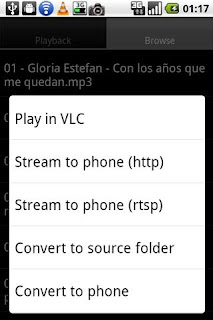
| VLC Stream & Convert Player Modes |
![]() |
| VLC rocks out with the cock out |
This is the homepage of the app, run by the developer, who is apparently on travel 24/7 (lucky bastard!)
![]() |
| Stream video to phone |
Subscribe to:
Posts (Atom)